






August 31, 2026
NOW AVAILABLE
Ability to Delete Manual Orders
Users can delete a manual parts order from a repair order when it was added in error or is no longer needed—instead of leaving it unordered and risking an accidental order.
What’s New
- Delete from the RO: Users can remove a manual order so it is no longer an active, orderable item.
- Cleaner parts tab: Deleted manual orders disappear from the active ordering list and don’t linger as unordered clutter.

QuickBooks Online: More reliable Bill Numbers for Purchase Orders
What changed
When a Purchase Order is posted to QuickBooks Online (QBO), the QBO Bill Number now includes both the Supplier Invoice # and PO #.
100468-5512The original Supplier Invoice # will continue to be included in the bill memo alongside the RO # and PO #, so it remains easy to search for in QBO.
- Each PO gets a distinct Bill Number using
{Supplier Invoice #}-{PO #} - Different POs using the same Supplier Invoice # no longer conflict with one another
- If posting is retried, AutoLeap can identify the existing bill and link/update it instead of creating a duplicate
- The Supplier Invoice # remains available in the QBO bill memo for reference and search
This makes PO posting to QBO more reliable and easier to reconcile, particularly when suppliers reuse invoice numbers or a transaction needs to be re-posted. It reduces the risk of duplicate bills, incorrect bill associations, and posting conflicts.
August 24, 2026
NOW AVAILABLE
French Localization for Service Advisors & Admins (Beta)
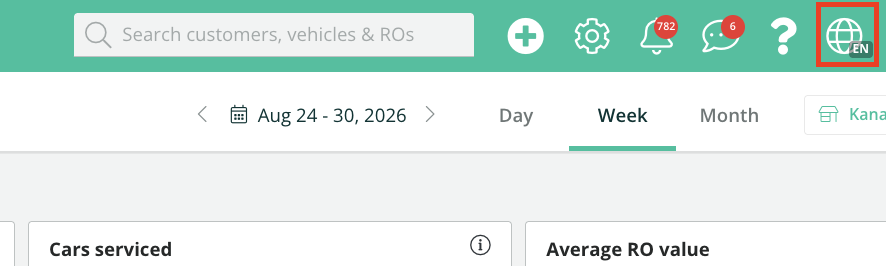
Availability: French localization is currently available to shops in Quebec, Canada. If you believe French localization should be enabled for your shop but you don’t see the option, please reach out to our Support team for assistance.
What’s Now Available in French
Workboard: Manage vehicle progress, technician assignments, and job statuses through a localized interface designed to make daily shop management easier for French-speaking teams.
Repair Orders: Navigate the complete RO workflow—from estimates and services through invoicing—with key fields, actions, and statuses available in French.
Customer Management: View and manage customer information, vehicle history, and communication preferences through localized customer profiles.
Appointments, Inspections & Tire Storage: Key operational workflows now support automotive-specific French terminology for a more consistent experience across the shop.
Built for Multilingual Teams
Language preferences work at the individual user level, so everyone can use the experience that works best for them. The application adapts to the user’s browser language – users set to French can work in French, while those set to English can continue in English.
This means multiple team members can work within the same shop and even the same records in different languages, without changing the experience for anyone else.
Allow Printing of Inventory Purchase Orders
What’s New
Print on Inventory POs: Add a print option on the Inventory purchase order so the full PO can be printed for the shop floor, receiving, or vendor follow-up.
Easier replenishment workflow: Advisors and managers can take a PO from screen to paper without leaving Inventory.
Print the PO you just built—ready for the counter, the stockroom, or the supplier.
Split Delivery for Online Orders & Inventory POs
What’s New
Same Split Delivery experience as the RO: Mark Delivered / Update Details on an Online Order or Inventory PO opens ability to Split Delivery by items enabling users to mark some items as delivered while leaving others in ordered state — as opposed to the earlier receive flow which enabled marking all items as Delivered.
Receive what actually arrived: Select individual items (and fees where applicable). Selected lines go Delivered; unselected lines stay Ordered. Orders/POs can show Partially Delivered.
Cancel what won’t arrive: Mark selected items Canceled without forcing the whole cart to one status.
Fix costs after delivery: Cost and Core stay editable after an item is delivered on Online Orders and Inventory POs, so shops can reconcile against the supplier invoice.
Inventory and status stay in sync: Completing the flow updates order/PO status, activity history, and on-hand inventory for what was actually received.
Cash Drawer Improvements
We’ve made several improvements to Cash Drawer to give shops more flexibility and control over how they count, reconcile, and manage their drawers.
More detailed reporting: Cash, check, and card variances are now displayed separately, along with total deposits and carry-forward amounts.
Flexible reconciliation: Choose which payment types—Cash, Check, and/or Card—your shop wants to reconcile.
Opening and carry-forward balances: Configure the amount you typically leave in the drawer and use it to automatically calculate the recommended deposit.
Start of Day Count: Optionally count the drawer at the beginning of the day and compare it with the previous day’s carry-forward balance.
Closing reminders: Configure reminders to notify users when it’s time to close and reconcile the drawer.
Simplified reconciliation: Cash, check, and card are now reconciled separately, making it easier to identify and document variances.
Cash paid out: Cash payments made against Purchase Orders are now included when calculating the expected drawer balance.
New user permissions: Control who can manage Cash Drawer reconciliation and who can edit a drawer after it has been reconciled.
Edit and audit history: Authorized users can update reconciled drawers, with an audit history available to track changes.
QuickBooks Online enhancements: Configure accounts for posting Cash Over/Short and Cash on Hand to QuickBooks Online.
See it in Action:
Tire Stock Ordering via PartsTech Lands on Tires tab
From Stock, when you Online Order tires through PartsTec, the experience opens on the Tires tab within the PartsTech punchOut when only tires are selected —instead of rerouting you to Parts and forcing tab + vendor switches. If both Parts and Tires are selected, then you will still be routed to Parts Tab.
What’s New
Tires tab by default: If the selection on stock is for tires only, PartTech would open with the tires tab selected.
Fewer clicks: Default supplier path allows results to show without manual vendor hunting.
TireConnect No Longer Adds Shipping for Local Warehouse Tires
When tires are added to an RO via TireConnect from a local warehouse, AutoLeap no longer creates an “Estimated shipping” other-line when shipping is $0 / not applicable—so local fills don’t look like they need freight.
What’s New
Smarter shipping lines: Skip estimated shipping when TireConnect shipping cost is zero or undefined.
Cleaner ROs: Less noise for advisors and customers on local warehouse tire adds.
Taxability Settings Apply to PartsTech Re-Stock Orders
Taxability settings for purchase and parts orders are respected on PartsTech tire/stock re-order POs—including taxable flags after mark-delivered—so restock POs match how the shop configured taxes.
What’s New
Settings honored on restock POs: Global PO taxability drives the taxable column in the restock flow.
Header clarity: Taxable and Supplier columns on the re-ordering screen are visually separated so they’re not read as one field..
Configure Pay by Link for Global Payments
Stores using Global Payments can now choose whether they want to offer Pay by Link to their customers.
Previously, when Card Online was connected, stores could accept card payments directly within AutoLeap and customers could also use the Pay Now option on invoices and estimate deposit requests sent via email or SMS. There was no option to disable these customer-facing payment links separately.
What’s New
A new Pay by Link toggle is now available under Global Pay integration Card Online settings.
Stores can use this toggle to:
Enable Pay by Link to allow customers to make online payments through payment links sent via email or SMS.
Disable Pay by Link to remove the customer-facing Pay Now option while continuing to accept Card Online payments directly within AutoLeap.
Existing stores with Card Online connected will have Pay by Link enabled by default, so their current payment experience will remain unchanged unless they choose to disable it.