






October 23, 2026
IMPROVEMENTS
Qty on Estimates: count approved services only [Beta]
What’s new
Qty on Estimates count only items on services the customer has approved, so pending or declined estimate lines don’t inflate your parts demand.
- Approved services: Qty on Estimates goes up only when a service is approved. It goes down if the service moves to Declined, Unauthorised, Deferred or Pending.
- Invoiced, finalized or archived ROs: Their quantities are taken out of Qty on Estimates.
- Edits: Changing the quantity on an approved line updates the count. Deleting a line or voiding an estimate takes its quantity out.

Enhanced Estimates & Invoices [Beta]
Contact your CSM to have this enabled for your shop.
What’s new
- The full story in one scroll: Each concern is shown with its inspection results and the services that resolve it.
- Cleaner, more professional design: Your shop’s branding up top, color-coded sections, and a clear summary of totals.
- Same look on the invoice: Includes a link back to the original estimate and a Paid to Date section with receipt details and Amount Due.
To send it, open the RO and choose Enhanced Estimate from the Send dropdown. Approvals and signatures work just like before.
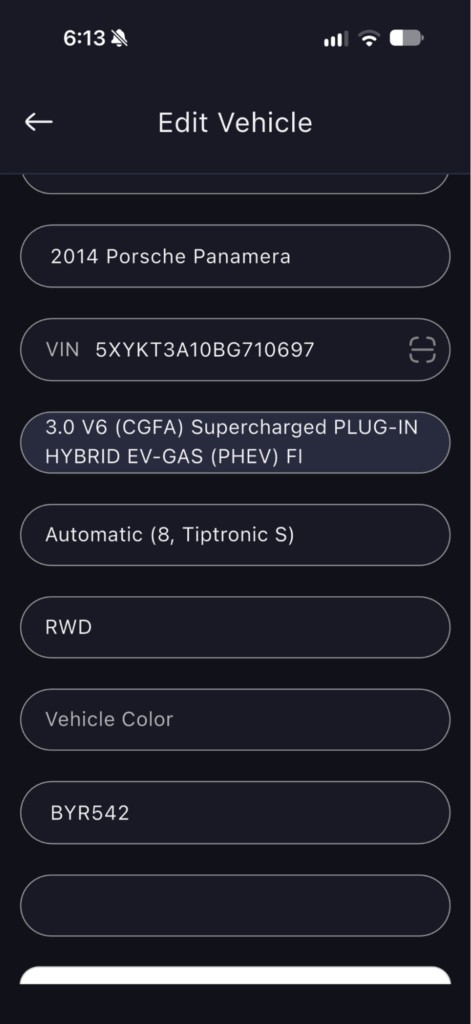
VIN Scanner Now Available in the Tech App [Mobile App]
Technicians can now scan a vehicle’s VIN directly from the Tech App, making it easier to capture and update vehicle information.
How to use:
- Open a vehicle in the Tech App.
- Navigate to Vehicle Details.
- Select Edit Vehicle.
- Tap the VIN Scanner icon to scan the vehicle’s VIN.
October 16, 2026
IMPROVEMENTS
Catalog edit user permission: Admins can manage this in User Permissions → Catalog and Inventory.
What’s new
- Turned off: The user can still open the Catalog tab and view everything. They can’t create, edit, delete, import or bulk update anything.
- Item modals: Item modals open as read-only, both in Catalog and from a Repair Order.
- Existing toggles: While this permission is off, the other Catalog toggles are greyed out. When it’s turned back on, they work again with the settings they had before.
- Repair Orders: Users can still add and adjust services, parts, labor and discounts on a Repair Order. Price and cost changes on the RO still follow your Repair Order permissions.
- Blocked actions: If a user tries something they don’t have access to, a message tells them what’s restricted and to contact their admin.
October 9, 2026
IMPROVEMENTS
Promotional SMS Campaigns - Clearer Credit Preview (EN/FR)
Contact your CSM to have this enabled for your shop.
What’s new
NAPA PROLink
*NAPA is not available on inventory restock or a standalone purchase order.
What’s new
Connect: In Settings → Integrations → Parts Ordering, connect NAPA PROLink with an existing account.
Repair Order: On the Parts Ordering tab, the NAPA card opens PROLink with the vehicle already selected. Select the parts you want to order, add them to the cart on NAPA and then transfer them back to AutoLeap
Place the order: Once you are back to AutoLeap, you can place order directly from AutoLeap and can choose to order all or some of the selected parts
Receiving the Delivery: Once you receive the parts, you can mark the orders from AutoLeap directly , while retaining the functionality to receive different items as part of different deliveries
Adjustable discount amounts on repair orders
New setting in Catalog under Discount Settings: Allow amount to be adjusted on a repair order. It’s off by default, and only users with the Catalog discount permission can turn it on.
Max Discount now works for dollar discounts too. Advisors can’t go above it. Leave it blank for no limit.
On the repair order, advisors can edit only the amount or percentage. Everything else stays read only, and the change applies to that repair order only.
Existing discounts are unchanged until you turn the setting on.
Deferred services now show on repair orders without a vehicle
A service deferred on a repair order without a vehicle is now saved to the customer.
On a new repair order for the same customer with no vehicle, these services now appear in Deferred > Browse.
Deferred services tied to a vehicle work as they did before.
Discounts in Canned Services
Discount is now a line item type in the Canned Service modal. Choose from your existing service-level discounts in Catalog.
A new Discount column lets you enter a custom $ or % discount on any line item. Discounts show as positive values, the same as on the repair order.
Save as Canned Service on a repair order now keeps the service’s discounts.
When you deactivate a discount, you’ll see a prompt saying it will be removed from any Canned Services and Flat Rate Items that use it.
Cost, Price and Supplier on the Inventory Level report
Values come from the item in Catalog. Cost and Price show in your shop’s currency.
You can sort by all three columns, and all three are included in the export.
If an item has no cost, price or supplier set, the cell shows a dash.
On multi-location accounts, every location row shows the same Cost and Price. Quantities still show separately for each location.
October 3, 2026
IMPROVEMENTS
Report names are now available in French language
Search Past Jobs on Any Customer's Orders
This can be found at the top of the Orders tab within a Customer’s profile.
Show Part and Tire Numbers on RO Service Lines